

PDF Accessibility:
What Organisations Should Check Before Publishing Documents
A practical publishing guide for government and enterprise teams
Digital Accessibility
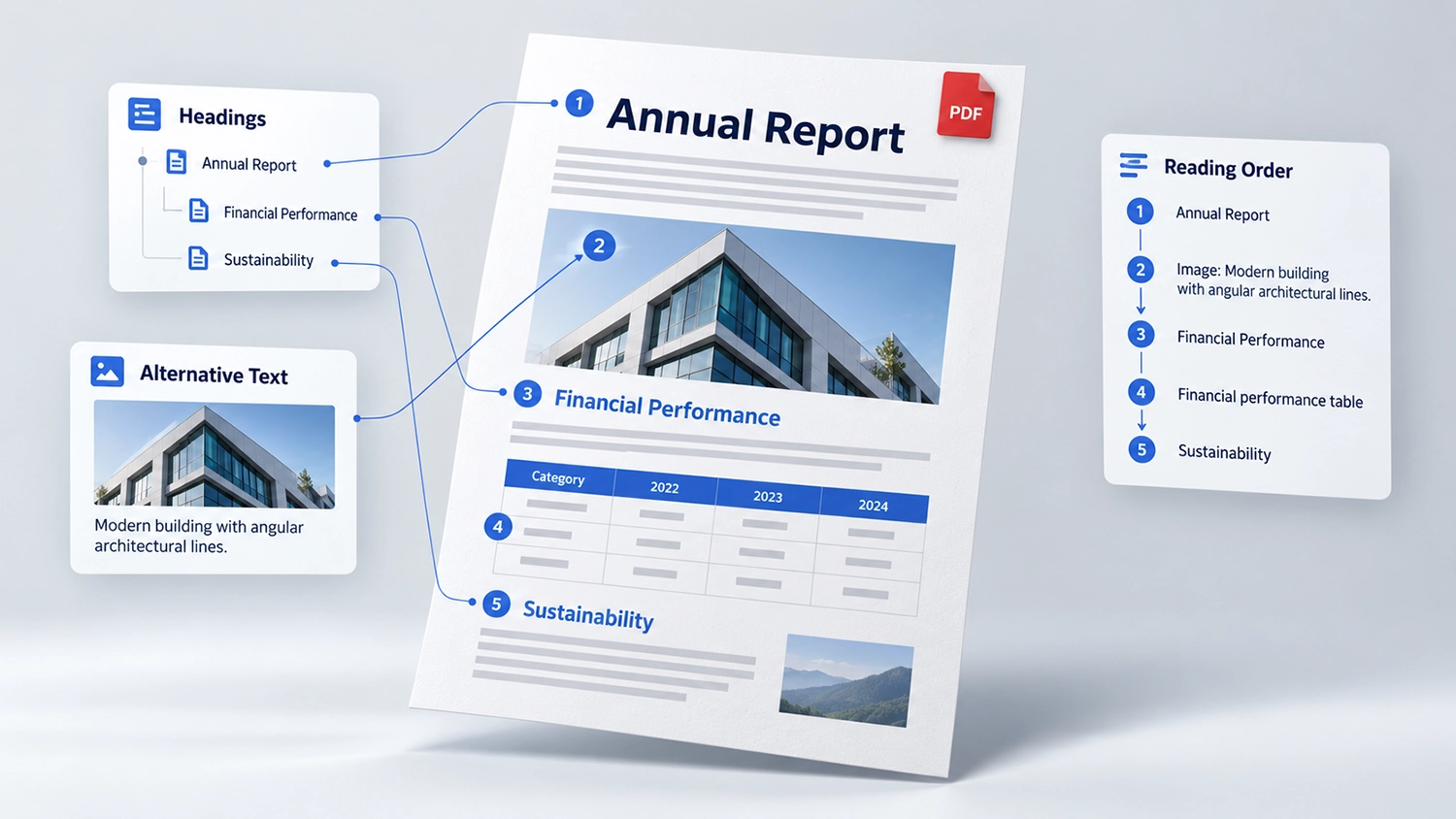
PDF accessibility should be part of the publishing process whenever an organisation shares a report, policy, application form or public information document. A file can look polished while remaining difficult to navigate with a keyboard or understand through a screen reader. The important question is whether readers can obtain the information and use the document for its intended purpose.
For government entities and enterprises publishing in Arabic and English, checking the final PDF is particularly important. Language settings, reading order and mixed text can behave differently after export. This guide explains what teams should review before publication and how to organise document accessibility work without treating a checker result as a complete assessment.
Decide Whether PDF Is the Right Format
Start with the task. A short service description or frequently updated instruction may be easier to maintain as an accessible web page. PDF can still be appropriate for a downloadable report, formal publication or document whose layout is important.
Where a PDF is necessary, publish it with a descriptive link that identifies its subject and file type. Consider including its size so visitors know what they are opening. An HTML summary can help readers understand the document, but it is not necessarily an equivalent alternative to all its information and functions.
For an application process, review the entire journey. If visitors must download a form, enter information and return it, each step needs to be usable. An accessible website does not automatically make its downloadable documents accessible.
Start PDF Accessibility in the Source Document
Build structure in the authoring file before exporting. Use proper heading styles, real lists, meaningful link text and suitable table structures. Layout choices that rely on repeated spaces, text boxes or manually positioned fragments can create unnecessary repair work later.
Use an export method that preserves accessibility information where supported. Then inspect the resulting PDF. Correct source formatting is a strong starting point, but conversion can still affect document structure or content order.
Keep the editable source and a record of the approved PDF version. When information changes, update the source and repeat the relevant checks. Repairing a PDF once does not ensure that a later export retains the same accessibility properties.
Check That Text Is Available and Accurate
A scanned page may contain only a picture of text. Optical character recognition, or OCR, can produce a text layer, but the recognised content needs checking. Names, amounts, dates and reference numbers deserve particular attention because recognition errors can change their meaning.
The W3C technique for scanned PDF text explains the role of OCR. Searchable or selectable text alone is not proof of an accessible document; structure and navigation still need review.
For Arabic documents, test representative paragraphs, punctuation and text mixed with English or numbers. Copy a passage into plain text and listen with a screen reader in a suitable environment. These checks can expose problems, although neither is a complete assessment by itself.
PDF Accessibility Checks for Headings and Reading Order
PDF tags describe document structure for assistive technology. Check that headings, paragraphs and lists are represented appropriately and that navigation reflects the content. Making a line larger or bold does not establish that it has a heading role.
Follow the reading sequence through columns, sidebars, captions and footnotes. A two-column report should not become a stream of alternating lines from unrelated paragraphs. In Arabic layouts, verify the intended order rather than assuming that visual right-to-left presentation establishes it.
The W3C guidance on PDF reading order explains how structure affects the sequence available to readers. For longer publications, useful PDF bookmarks can also help people find sections without moving through every page.
Identify the Document Language
Set the document’s main language and check language changes within bilingual content where required. A translated cover does not establish the language of the rest of the file.
The W3C technique for the default PDF language and its guidance on language changes within a PDF describe these settings. Actual speech output also depends on the reader’s software and available voices.
Review the Arabic and English versions independently. Check titles, headings, table labels and any untranslated instructions. For bilingual documents, include mixed examples such as an Arabic paragraph containing an English department name or an application code.
Make Images and Charts Understandable
Informative images need suitable text alternatives that convey their purpose in context. A chart may require a nearby explanation or accessible data table as well as a concise alternative description. The reader needs the information, not merely the fact that a chart exists.
W3C guidance on PDF image alternatives provides a technical reference. Handle purely decorative material appropriately so it does not interrupt the meaningful content. Review descriptions written automatically before accepting them.
For example, describing a chart as “blue and green bars” does not explain which service received more applications or the period covered. Use a description that supports the document’s message without inventing conclusions absent from the data.
PDF Accessibility Checks for Tables
A reader should be able to associate each data value with the correct heading. Check that table headers and data cells are identified, and review merged cells or multilevel headings carefully.
The W3C technique for PDF tables explains structural markup. Conversion can produce incorrect results even when a table appears normal. Test representative rows and columns, especially in Arabic financial or statistical reports.
Simplifying a complex table can help, provided the information and relationships remain intact. Do not turn a table into a screenshot merely to preserve its appearance.
Test Links Forms and Visual Presentation
Check that link text communicates the destination or purpose in context. For interactive forms, verify accessible field names, required information, keyboard order and selected states. Test whether readers can enter, review and save the information needed for the task.
W3C guidance on accessible PDF form controls describes the information assistive technology needs. A visible label near an empty box is not enough to establish that the box is a usable form field.
Review text contrast, instructions that rely on colour, and the experience when content is enlarged. Check whether information becomes hidden or impractical to follow in the supported reading environments. Maintain legible text instead of shrinking the entire page to fit more content.
Combine Automated Checks With Manual Review
An accessibility checker can help find missing properties or structural issues. However, it cannot reliably decide whether every description is useful or every reading sequence makes sense. Adobe’s guidance on creating and verifying accessible PDFs includes checks requiring manual review.
Test meaningful tasks with a keyboard and appropriate assistive technology. Record the file version, tools, environments, findings and corrections. If a particular standard or procurement requirement applies, define it before assessment and report the evidence against that scope.
For a large document library, prioritise essential service forms, frequently used publications and information needed to make decisions. Set an owner and a review step for new files so the backlog does not keep growing.
Frequently Asked Questions
Does OCR Make a PDF Accessible
OCR can make scanned text available, but accuracy, structure, reading order and other relevant features still need checking.
Is a Tagged PDF Automatically Accessible
No. Tags may be incomplete, incorrect or arranged in an unsuitable order. Review their meaning and the resulting reader experience.
Does a Website Accessibility Widget Fix Downloadable PDFs
The presence of a website widget does not demonstrate that a downloadable PDF has been remediated. Evaluate the document itself and any document-specific service separately.
Should Arabic and English PDFs Be Tested Separately
Yes. Each version can contain different language, extraction, layout and navigation issues, even when both started from the same template. Before publishing, complete a final PDF accessibility review of each language version, including its reading order, tables, images and forms.
How VisiAble Can Help
VisiAble’s file accessibility services help organisations review and improve documents, including PDFs and their editable sources. An agreed scope can address document structure, image descriptions, tables, forms and verification of Arabic and English content.
Our professional accessibility audits can also examine how visitors find and use documents within a website journey. This connects document review with the service the reader is trying to complete.
Contact VisiAble to discuss your priority files, available source documents and publishing requirements. Start with a representative sample to define the work and expected deliverables before expanding across the library.
Further Reading
Explore automated and manual accessibility testing and website accessibility for government entities. Review our accessibility standards when defining your assessment requirements.